Air Gap License Management

Welcome to the Air Gap License Manager self-service user interface, a tool designed to enable Air Gap License users to obtain an updated license file whenever the license is used for the first time, when the license properties have changed (such as a license term Renewal or license size Upgrade), or when moving the license (Registration Key) to a different server.

Important Terms of Use
Self-service management of Air Gap Licenses is compatible with MDaemon version 25.0.0 or higher. Air Gap Licenses are required to remain completely isolated from the internet and the MDaemon Software Licensing online service. Connecting the server to the internet can trigger a license deviation and error condition. When this occurs, the MDaemon Email Server may experience an immediate or eventual deactivation and shutdown.

Instructions
Please select a set of instructions below that applies your use of an Air Gap License.

Instructions for first-time installation.
Use for installing MDaemon Email Server for the first time, in an air-gapped environment.

License Request File - On the MDaemon Server

  1. Download MDaemon Email Server version 25.0.0 or higher.
  2. Run the MDaemon Email Server installer on the new server.
  3. When prompted for Installation Type, select I already have a registration key (enter it here).
  4. Input the MDaemon Registration Key and click Next.

    MDaemon installation type selection screen with options for trial or registration key.

  5. The installer will display the “Unable to download license file” dialog.
  6. Select Click here to request an air-gapped license.

    Error message for MDaemon Server installation regarding license file download failure.

  7. At the Air-Gapped License prompt, select Yes to save the file.

    Popup message about air-gapped license for MDdemon software. Options: Yes or No.

  8. The Save Air-Gapped License Request window will appear. Save the license_request.xml file to a portable storage device.
  9. Confirmation of the saved file will appear.

    Air-gapped license request saved, instructions for obtaining the license file.

  10. 🛑 Pause at this step and proceed to the next step, Self-Service License Manager Tool.


Self-Service License Manager Tool

  1. Using the Self-Service License Management Tool (First-Time Installation or MDaemon Server Deactivation) on this page, select Choose File to browse to and select the license_request.xml file created by the MDaemon Installer.
  2. Click Download Your License File.
  3. Save the license.xml file to a portable storage device and take it to your MDaemon server.


License File - On the MDaemon Server

  1. Return to the MDaemon installer screen and click OK.

    Air-Gapped License request saved with instructions for file management.

  2. The Open Saved Air-Gapped License File window will appear. Browse to and select the license.xml file created by the Self-Service License Management Tool and click Open.
  3. MDaemon will display “Ready to Install!” Click Next to complete the installation process.

    MDaemon Server installation ready screen with options to begin or cancel.

Instructions for existing closed network licenses.
Use for the the one-time time process for transitioning an existing closed network license to self-service management.

Self-service management of air-gapped licenses is compatible with MDaemon version 25.0.0 or higher. If you have not yet installed 25.0.0 or higher, please follow the Instructions for first-time installation found on this page.

If MDaemon 25.0.0 or higher is already installed, follow these steps to transition to air-gap self-service:

  1. Rename, move, or delete the existing license.xml file on the server. The default location of the file is \MDaemon\License\license.xml.
  2. Follow the the Instructions for first-time installation found on this page.

Instructions for updating an existing Air Gap license.
Use to download a new license file after purchasing a license term Renewal or license size Upgrade. 

After completing a purchase transaction to Renew (extend the license term) or Upgrade (increase the license size) of an existing Air Gap License, you must download a revised license.xml and transfer it to the MDaemon Server and overwrite the existing file. The new file contains the updated license parameters.

Self-Service License Manager Tool

  1. Using the Self-Service License Management Tool (Update and Existing Air Gap License) on this page, enter your MDaemon Registration Key.
  2. Click Download Your License File.
  3. Save the license.xml file to a portable storage device and take it to your MDaemon server.


License Request – On the MDaemon Server
1.   Go to Help | Register Your MDaemon Software...
2.   Click the Update... button.
3.   Click OK.
4.   The Open Saved Air-Gapped License File window will appear. Browse to and select the license.xml file generated by the Self-Service License Manager Tool and click Open.
5.   Click Yes when prompted to restart MDaemon.

Instructions for moving an MDaemon Air Gap License to a new server.
Use to deactivate an existing Air Gap License and move to a different air-gapped server.

Manual Deactivation - On the MDaemon Server 
IMPORTANT: If you do not complete this step, the software will fail to activate.

  1. Go to Help | Activate Your MDaemon Software | Deactivate MDaemon.
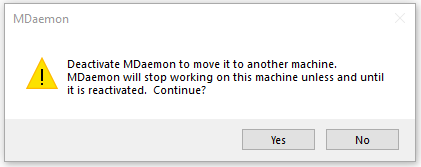
  2. Click Yes to deactivate MDaemon.

    Warning message about deactivating McAfee on this machine. Options to continue.

  3. The Save Air-Gapped License Request window will appear. Save the license_request.xml file to a portable storage device.
  4. 🛑 Pause at this step and proceed to the the next step, Self-Service License Manager Tool.


Self-Service License Manager Tool

  1. Using the Self-Service License Management Tool (First-Time Installation or MDaemon Server Deactivation) on this page, select Choose File to browse to and select the license_request.xml file saved by MDaemon.
  2. Click Download Your License File.
  3. Save the license.xml file to a portable storage device and take it to your MDaemon server.


License File - On the MDaemon Server

  1. Return to the MDaemon screen and click OK.
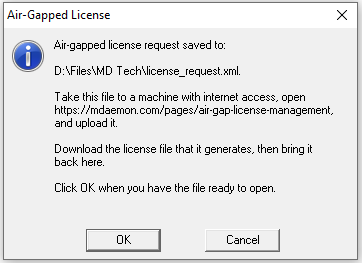
    Air-gapped license request saved, instructions for obtaining the license file.

  2. The Open Air-Gapped License File window will appear. Browse to and select the license.xml file and click Open.
  3. MDaemon is now deactivated, mail services will no longer function, but you can still see the user interface.


License File - On the New Air-Gapped Server

Are you installing MDaemon for the first time on the new server?

  1. Refer to the Instructions for First-Time Installation


Is MDaemon already installed on the new server?

  1. On the new server, go to Help | Register Your MDaemon Software...
  2. Enter your Registration Key in the MDaemon Registration Key field
  3. Click OK.
  4. The Save Air-Gapped License Request window will appear. Save the license_request.xml file to a portable storage device.
  5. Confirmation of the saved file will appear.
  6. 🛑 Pause at this step and proceed to the next step, Self-Service License Manager Tool.


Self-Service License Manager Tool

  1. Using the Self-Service License Management Tool (First-Time Installation or MDaemon Server Deactivation) on this page, select Choose File to browse to and select the license_request.xml file saved by MDaemon.
  2. Click Download Your License File.
  3. Save the license.xml file to a portable storage device and take it to your MDaemon server.


License File - Local Server

  1. Return to the MDaemon screen and click OK.
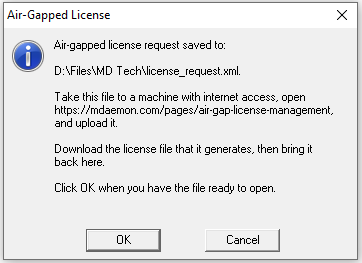
    Air-Gapped License request saved with instructions for file management.

  2. The Open Air-Gapped License File window will appear. Browse to and select the license.xml file and click Open.
  3. Click Yes when prompted to restart MDaemon.


Self-Service License Management Tool

First-Time Installation or MDaemon Server Deactivation


To complete the installation of an Air Gap License, click on Choose File to browse to and select the license_request.xml that came from the MDaemon Server. Next, select Download Your License File to save the new license.xml file. Take this new file to the MDaemon Server to complete the installation process.

If you want to deactivate and move an existing Air Gap License (Registration Key) to a new server, you need to provide the license_request.xml that was saved during the deactivate step on the MDaemon Server. Next, select Download Your License File to save the new license.xml file. Take this new file to the MDaemon Server that is being deactivated and follow all subsequent instructions.

Update An Existing Air Gap License


After completing a purchase transaction (such as a Renewal or Upgrade), you need to provide the applicable Registration Key. Next, select Download Your License File to save the new license.xml file. Take this new file to the MDaemon Server to complete the update process.

The PCID field is optional and only required for a registration key that is authorized for use on multiple servers. Our sales team will inform you if this step is necessary.

Please contact our Technical Support team if you are experiencing issues.